

- by x32x01 ||
If you’re looking for an easy way to convert image to text using Microsoft Word, you’re in the right place 👍
In this step-by-step tutorial, you’ll learn how to extract text from images using built-in Microsoft Word tools without installing extra software.
Whether you’re working with scanned documents, screenshots, or photos that contain text, this method will help you turn images into editable text in seconds 🚀
🎥 Watch the full video tutorial here:
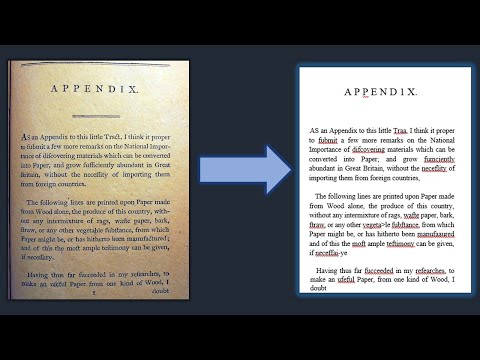
OCR technology scans an image and detects letters, numbers, and symbols, then converts them into editable text.
Microsoft Word has a simple built-in way to extract text from images, especially when combined with PDF features.
Fix it using:
Always review and proofread the extracted text.
You don’t need complex OCR software or online tools.
With just a few clicks, you can turn any image into editable text and start modifying it instantly.
Try it today and save hours of manual typing ⏳✨
In this step-by-step tutorial, you’ll learn how to extract text from images using built-in Microsoft Word tools without installing extra software.
Whether you’re working with scanned documents, screenshots, or photos that contain text, this method will help you turn images into editable text in seconds 🚀
🎥 Watch the full video tutorial here:
👆 Click The Image To Watch The Video 👆
What Is Image to Text Conversion (OCR)? 🔍
Image to text conversion is also known as OCR (Optical Character Recognition).OCR technology scans an image and detects letters, numbers, and symbols, then converts them into editable text.
Microsoft Word has a simple built-in way to extract text from images, especially when combined with PDF features.
Why Convert Image to Text in Microsoft Word? 💡
Using Microsoft Word to convert image to editable text is useful for:- 📄 Editing scanned documents
- 📝 Copying text from screenshots
- 📚 Extracting text from books or printed papers
- 💼 Reusing text from certificates or forms
- 🧠 Saving time instead of typing everything manually
Method 1: Convert Image to Text Using Word (Via PDF Trick) 🔄
This is the easiest and most reliable method.Step 1: Insert Image into Word 🖼️
- Open Microsoft Word
- Click Insert → Pictures
- Select your image
Step 2: Save as PDF 📁
- Click File → Save As
- Choose PDF as file type
- Save the file
Step 3: Open PDF in Word 📂
- Open Microsoft Word again
- Click File → Open
- Select the PDF file
- Word will convert the PDF to editable text
Method 2: Copy Text from Image (Newer Word Versions) 📋
Some Microsoft 365 versions support direct text recognition.- Insert the image
- Right-click the image
- Choose Copy Text from Picture (if available)
Tips for Better OCR Results ⚙️
To get accurate text recognition:- 📸 Use clear, high-resolution images
- 💡 Make sure the text is not blurry
- 🧾 Avoid handwritten text (OCR works best with printed text)
- 📏 Keep the image straight (not tilted)
Common Problems and Fixes 🛠️
Text Formatting Looks Messy
After conversion, formatting may change.Fix it using:
- Bold formatting
- Font size adjustments
- Paragraph spacing
Some Words Are Incorrect
OCR is not perfect.Always review and proofread the extracted text.
Who Should Learn This? 👨💻
This tutorial is perfect for:- Students
- Office workers
- Bloggers
- Content creators
- Developers who need text extraction
- Anyone working with scanned files
Final Thoughts 🎯
Converting image to text using Microsoft Word is simple, fast, and free.You don’t need complex OCR software or online tools.
With just a few clicks, you can turn any image into editable text and start modifying it instantly.
Try it today and save hours of manual typing ⏳✨
Last edited:


