

- by x32x01 ||
If you want to record your screen in 4K without installing extra software, this guide will show you how to use Microsoft PowerPoint for high-quality screen recording.
Many people don’t know that PowerPoint includes a built-in screen recording tool that works perfectly for tutorials, coding demos, presentations, and online courses.
Here’s why it’s useful:
You don’t need complicated software to create high-quality tutorial videos.
If you're teaching programming, networking, or cybersecurity, this built-in tool can save you time and money while delivering professional results.
Start recording today and create high-quality 4K tutorials easily 🚀🎥
Many people don’t know that PowerPoint includes a built-in screen recording tool that works perfectly for tutorials, coding demos, presentations, and online courses.
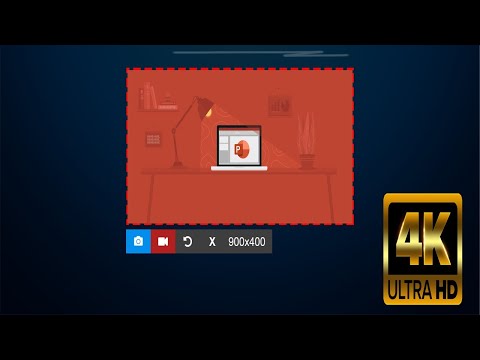
👆 Click The Image To Watch The Video 👆
Why Use PowerPoint for Screen Recording? 💡
Microsoft PowerPoint is not just for slides. It also includes a powerful screen recording feature.Here’s why it’s useful:
- No third-party software required ✅
- Easy to use interface 🎯
- High-resolution recording support (including 4K) 🖥️
- Built-in audio recording 🎙️
- Direct export to MP4 video 📁
How to Record Screen in 4K Using PowerPoint 🖥️
Follow these steps:Step 1: Open PowerPoint
- Launch Microsoft PowerPoint
- Create a new blank presentation
Step 2: Access Screen Recording Tool
- Go to the Insert tab
- Click Screen Recording
Step 3: Select Recording Area 🎯
- Click Select Area
- Drag your mouse to choose the area you want to record
- You can select the full screen for 4K
- Or choose a specific window
Step 4: Start Recording 🎬
- Click the Record button
- You can enable microphone and pointer recording
- Press Windows + Shift + Q to stop recording
Export Screen Recording as 4K Video 📤
To save your recording:- Right-click the video
- Select Save Media As
- Save it as MP4
- Click File → Export
- Choose Create a Video
- Select the highest resolution available
PowerPoint Screen Recording Settings Tips ⚙️
To improve video quality:- Use a 4K monitor resolution
- Close unnecessary background apps
- Use a good microphone 🎙️
- Record in a quiet environment
- Keep animations minimal
When Should You Use PowerPoint Screen Recording? 👨💻
This method is perfect for:- Programming tutorials
- Excel or Word lessons
- Network configuration demos
- Cybersecurity lab walkthroughs
- Online teaching
- Quick software demonstrations
PowerPoint vs Other Screen Recorders ⚖️
PowerPoint is great for:- Quick recordings
- Simple tutorials
- Built-in solution
Final Thoughts 🎯
Recording your screen in 4K using Microsoft PowerPoint is simple, fast, and free.You don’t need complicated software to create high-quality tutorial videos.
If you're teaching programming, networking, or cybersecurity, this built-in tool can save you time and money while delivering professional results.
Start recording today and create high-quality 4K tutorials easily 🚀🎥
Last edited:


