

- by x32x01 ||
Learn to Draw Anything with Adobe Illustrator CC 🎨🚀
If you want to improve your drawing skills in Adobe Illustrator CC and create clean, professional vector illustrations, this complete tutorial will guide you step by step.🎥 Watch the full lesson here:
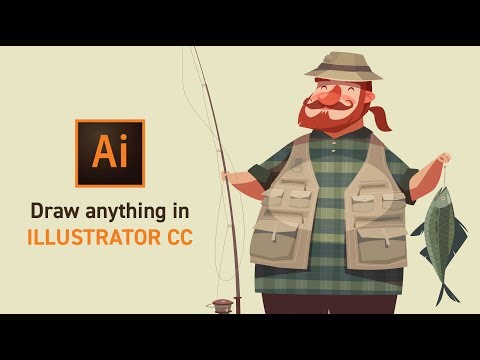
👆 Click The Image To Watch The Video 👆
This training focuses on mastering Illustrator tools, understanding shapes, symmetry, color control, and advanced vector techniques - everything you need to draw almost anything inside Illustrator.Why Learn Drawing in Adobe Illustrator? ✏️
Adobe Illustrator is built for vector illustration, meaning your artwork can scale infinitely without losing quality.With Illustrator, you can:
✔ Create logos and icons
✔ Design illustrations
✔ Build social media graphics
✔ Make scalable artwork for print and web
If you're serious about vector drawing and digital illustration, mastering Illustrator CC is essential.
Understanding Light, Details & Color 🎯
Before diving into tools, the course explains the importance of:- Adding details
- Using light and shadow
- Choosing strong color combinations
Mastering the Pen Tool in Illustrator ✒️
The Pen Tool is one of the most powerful tools in Adobe Illustrator.You’ll learn:
- How to draw straight lines
- How to create curved lines
- How to design shapes like the Ying Yang icon
- How to control corners and anchor points
Creating Symmetrical Shapes Easily 🔄
Symmetry is essential in logo and icon design.The tutorial covers:
Symmetrical Method 1
Draw half the shape and mirror it.Symmetrical Method 2
Use transformation techniques for faster results.Transform Effect Tool
This tool allows you to duplicate and rotate shapes automatically — perfect for complex patterns and geometric designs.Shape Builder Tool - The Game Changer 🧩
The Shape Builder Tool helps you merge, remove, and combine shapes quickly.Examples covered:
- Building the Twitter-style logo
- Creating a Celtic Cross
- Using Shape Builder for erasing
Rounded Rectangle & Expand Tool Tips 🔲
You’ll also learn:- How to adjust rounded corners precisely
- When and how to use the Expand Tool
- Converting effects into editable shapes
Live Paint Bucket & Recolor Artwork 🎨
These features speed up coloring workflows.Live Paint Bucket
Fill sections easily without manually separating shapes.Recolor Artwork Tool
Quickly change entire color schemes.Advanced features include:
✔ Color Locking ✔ Color Groups
This is extremely useful when testing branding variations.
Appearance & Graphic Styles Panel ✨
The course also explains:- Using the Appearance panel
- Applying Graphic Styles
- Layering effects
Drawing & Editing Tools Explained 🖌️
To fully master drawing in Illustrator CC, you’ll explore:Direct Selection Tool
Edit anchor points and curves precisely.Gradients
Add smooth color transitions and depth.Pencil Tool
Freehand drawing for organic shapes.Eraser Tool
Remove parts of shapes cleanly.Width Tool
Adjust stroke thickness dynamically.Draw Inside Mode
Draw within specific shapes without going outside boundaries.These tools help you move from simple shapes to complex vector illustrations.
Example: Building a Complete Illustration 🖼️
The tutorial ends with a full illustration example using:- Pen Tool
- Shape Builder
- Gradients
- Transform Effects
- Recolor Artwork
Who Is This Illustrator Drawing Course For? 👨🎨
This course is ideal for:- Beginner designers
- Logo creators
- Icon designers
- Digital illustrators
- Content creators
Final Thoughts on Mastering Illustrator Drawing 🏆
Learning to draw in Adobe Illustrator CC isn’t just about knowing tools - it’s about understanding shapes, symmetry, color control, and clean vector construction.Master the Pen Tool. Practice symmetry. Experiment with Shape Builder. Refine with gradients.
With consistent practice, you’ll be able to create professional-level vector artwork confidently.
Last edited:


