
- by x32x01 ||

If you spend long hours coding in MetaEditor, changing the default color scheme can make your workflow more comfortable and easier on the eyes. Whether you prefer a light theme, a dark theme, or a style similar to Monokai, MetaEditor allows you to customize all colors through simple configuration settings.
Below, you’ll find multiple ready-to-use color themes. All you have to do is copy and paste them into your metaeditor.ini file and restart MetaEditor. 👇
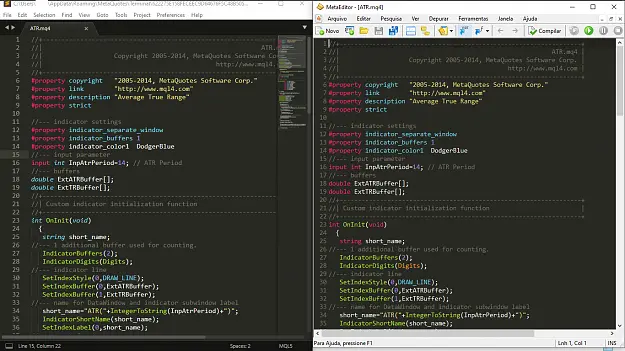
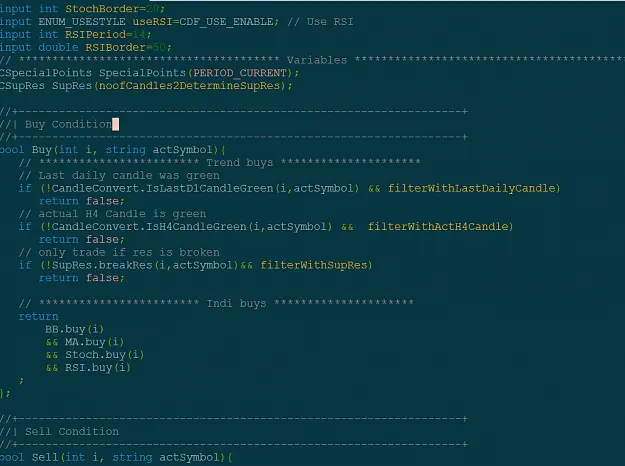
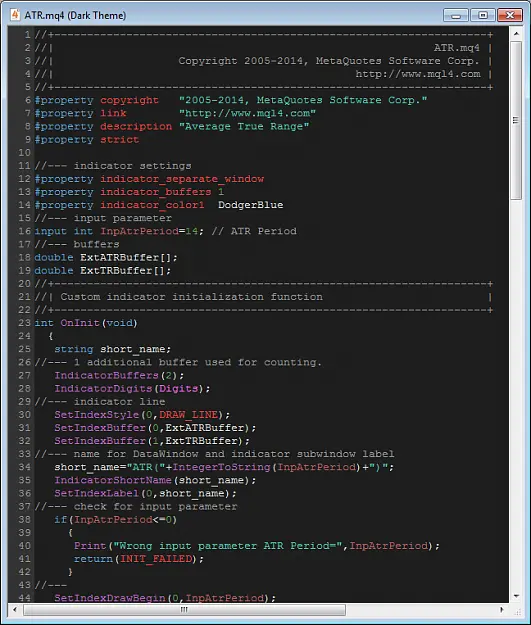
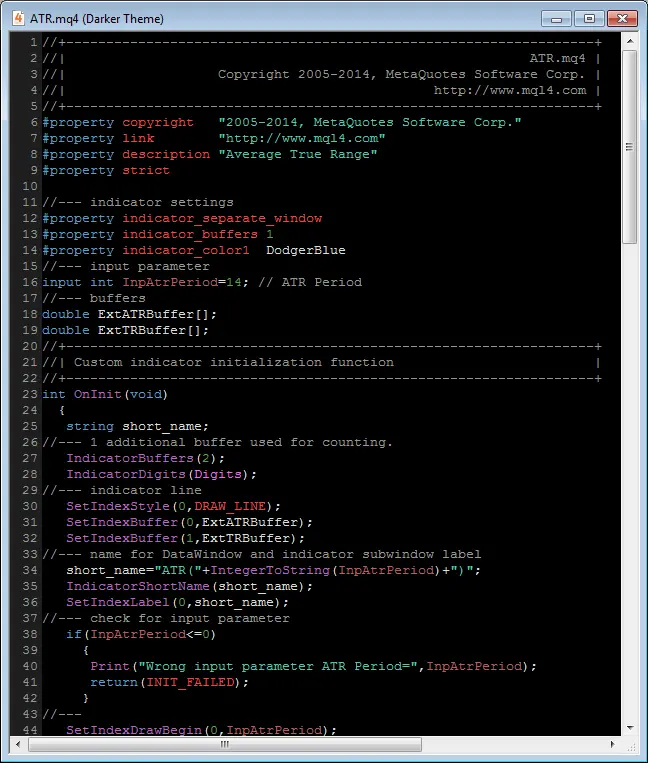
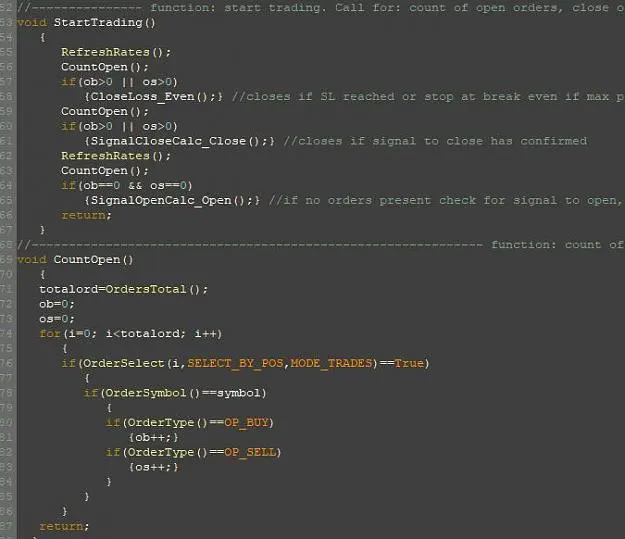
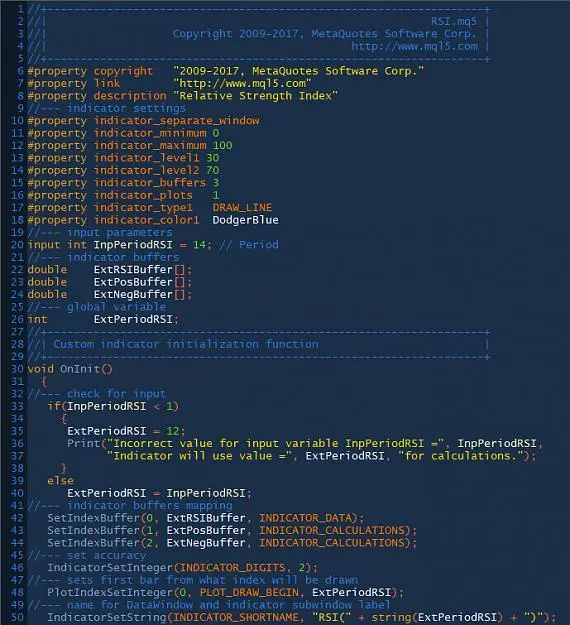
Below, you’ll find multiple ready-to-use color themes. All you have to do is copy and paste them into your metaeditor.ini file and restart MetaEditor. 👇
How to Apply a Custom Color Scheme ✨
To use any of the color themes below:- Go to the MetaTrader installation folder.
- Open the path:
(MetaTraderFolder)\config\metaeditor.ini - Scroll to the bottom of the file.
- Replace the existing [Colors] section or paste a new one.
- Save the file and restart MetaEditor.
Default Color Scheme Structure 🧩
Here’s the standard MetaEditor color structure so you know what each value controls: Code:
[Colors]
Color0 = Text (background)
Color1 = Text (foreground)
Color2 = Text selection (background)
Color3 = Text selection (foreground)
Color4 = Selection margin (background)
Color5 = Keywords
Color6 = Comments
Color7 = Numbers
Color8 = Operators
Color9 = Strings
Color10 = Macros
Color11 = Functions and entry points
Color12 = Indicators
Color13 = Pre-defined types and variables
Color14 = Input variables
Color15 = Non-ASCII characters
Monokai-Style Color Scheme 🌈 (Similar to Sublime Text)
Code:
[Colors]
Color0=2304296
Color1=15923448
Color2=0
Color3=55295
Color4=2304296
Color5=7480569
Color6=6123636
Color7=16744620
Color8=15923448
Color9=7658471
Color10=15718503
Color11=2876070
Color12=17919
Color13=2266877
Color14=15923448
Color15=65535
Alternative Color Scheme #1
Code:
[Colors]
Color0=4339207
Color1=10592659
Color2=16777215
Color3=7695960
Color4=15790320
Color5=13798182
Color8=39301
Color9=10002730
Color10=9145837
Color11=14314949
Color14=2139610
Color15=55295
Dark Color Theme 🌙
Code:
[Colors]
Color0=1973790
Color1=14474460
Color2=14474460
Color3=7884582
Color4=3355443
Color5=14064726
Color6=9934743
Color7=4892247
Color8=14474460
Color9=11585870
Color10=4210943
Color11=12936125
Color12=4892247
Color13=16736511
Color14=6118848
Color15=10505471
Darker Theme 🖤
Code:
[Colors]
Color0=0
Color1=14474460
Color2=14474460
Color3=7884582
Color4=1973790
Color5=14064726
Color6=9934743
Color7=4892247
Color8=14474460
Color9=11585870
Color10=4210943
Color11=12936125
Color12=4892247
Color13=16736511
Color14=6118848
Color15=10505471
Color Theme #2
Code:
[Colors]
Color0=4144959
Color1=15794175
Color2=15794175
Color3=13749760
Color4=6908265
Color5=755384
Color6=8363903
Color7=13881484
Color8=12377327
Color9=8363903
Color10=36095
Color11=9433071
Color12=13850042
Color13=10724316
Color14=0
Color Theme #3
Code:
[Colors]
Color0=5914149
Color1=16777215
Color2=16777215
Color3=10972161
Color4=3482641
Color5=2992358
Color6=14322490
Color7=2611323
Color8=5210352
Color9=777716
Color10=36095
Color11=13873293
Color12=14053594
Color13=13873293
Color14=13499135
Color15=16711935
Final Tips for a Better Coding Experience 💡
- Choose darker themes to reduce eye strain during long sessions.
- Monokai-based themes are great for highlighting syntax clearly.
- Make a backup of your metaeditor.ini before editing.
- Restart MetaEditor after every color change.